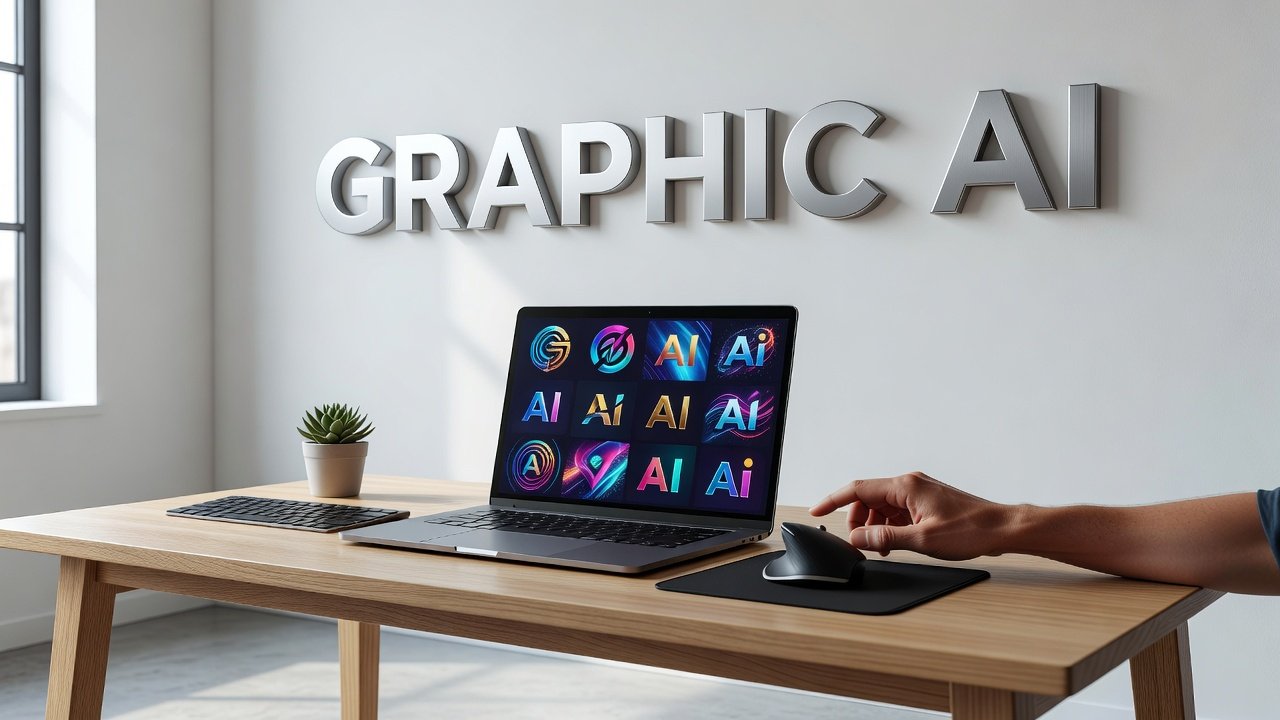
You have an idea in your head. Maybe it's a logo concept, a book cover, or a social media graphic. But you can't draw, and hiring a designer isn't in the budget. A few years ago, you'd be stuck. Today, you can describe what you want in plain language and watch AI build it for you in seconds.
The shift happened quietly but fast. AI graphic generators now let anyone turn a rough concept into a polished visual without touching design software. These tools don't just slap together clip art. They use diffusion models to interpret your description and generate original images from scratch. The best part? Many of them are completely free.
This guide walks you through the free AI tools that actually deliver, how to use them effectively, and what to expect when you're starting with nothing more than a vague idea.
Why Text-to-Image AI Changed Everything
Before diffusion models became mainstream, creating graphics meant learning Photoshop, Illustrator, or paying someone who did. AI flipped that barrier. Now you type what you want, and the system generates it. No layers, no brushes, no bezier curves.
The quality leap happened around 2022 and kept accelerating. Early AI images looked dreamy and abstract, useful for concept art but not much else. Current models produce sharp, coherent visuals that work for real projects. Business cards, blog headers, product mockups - people use these outputs in production.
AI Snapshot: Craiyon allows users to generate nine images at once from a text prompt for free, with no limit to the number of images a user can generate.
What makes this accessible is prompt engineering. That's the skill of writing descriptions that get you closer to what you want. It's not coding. It's more like learning to brief a designer, except the designer is a neural network. You get better with practice, and the tools respond faster than any human could.
Democratization is the word people use, but it's simpler than that. These tools let you test ideas without risk. You can generate fifty variations in an hour and pick the one that works. That iteration speed changes how creative projects start.
Craiyon: The Simplest Entry Point
Craiyon used to be called DALL-E mini, which confused people. It's not made by OpenAI, and it's not mini anymore. What it is: a straightforward, no-signup-required image generator that spits out nine images per prompt.
You type a description. The system thinks for 30 to 60 seconds. Nine square thumbnails appear. Some will be closer to your idea than others. The interface doesn't overwhelm you with settings or sliders. That simplicity makes it perfect for first-timers.
The catch is resolution. Free images come out small and slightly blurry. Craiyon offers an upscale feature to enhance the resolution of generated images, which helps, but won't turn a rough output into print-ready art. The free version of Craiyon may include watermarks on the generated images, which you'll need to crop or accept.
There is no limit to the number of images a user can generate for free on Craiyon. That unlimited access matters when you're experimenting. You can refine your prompt ten times without worrying about burning through credits. Try "a minimalist logo of a coffee cup with geometric shapes" or "a pastel sunset over mountains, digital painting style" and see what sticks.
Craiyon works best for brainstorming and mood boards. If you need pixel-perfect output, you'll outgrow it quickly. But for turning a rough idea into something you can react to, it's hard to beat the speed and zero barrier to entry.
Stable Diffusion: Power Without a Price Tag
Stable Diffusion is open-source, which means the model itself is free to use. You can download it and run it on your own computer if you have a decent graphics card. Most people access it through free online interfaces instead, which handle the heavy computing for you.
The quality difference is noticeable. Stable Diffusion produces sharper, more detailed images than simpler tools. Users can generate images with specific artistic styles by including style descriptors in their text prompts. Want a cyberpunk aesthetic? Add "neon lights, futuristic cityscape, cyberpunk style" to your description. Looking for watercolor? Mention it explicitly.
Many online versions of Stable Diffusion allow for negative prompting, where users can specify elements they wish to exclude from the generated image. This feature gives you control most free tools don't offer. If you're generating a portrait and keep getting weird hands, you can add "distorted hands, extra fingers" to the negative prompt field and steer the output away from those problems.
The quality and speed of image generation in free online Stable Diffusion tools can vary depending on server load and user traffic. Peak hours mean longer wait times. Late night or early morning sessions tend to process faster. Some platforms like Free.ai's sketch-to-image generator let you upload a rough sketch and turn it into a finished piece, bridging the gap between hand-drawn concepts and polished digital art.
Stable Diffusion rewards specificity. Generic prompts get generic results. The more detail you provide about composition, lighting, mood, and style, the closer the output matches your vision. It's a steeper learning curve than Craiyon, but the ceiling is much higher.
How to Actually Use These Tools Without Wasting Time
The first image you generate will probably disappoint you. That's normal. These tools aren't magic. They're pattern-matching systems trained on billions of images, and they need clear instructions.
Start with structure. Don't just write "cool logo." Write "modern sans-serif logo for a bakery, warm colors, simple wheat icon, clean lines." The AI needs to know the subject, the style, the mood, and the details. Think of it as filling in a form, not brainstorming out loud.
Run batches. Generate multiple images from the same prompt and compare. AI outputs vary even with identical inputs. One might nail the color palette while another gets the composition right. Save the best parts of each and refine your prompt based on what worked.
Iterate on existing images. Some AI image generators can also iterate on an existing image or expand its boundaries based on new prompts. If you have something close but not quite right, you can upload it and ask the AI to adjust specific elements. This approach saves time once you're in the ballpark.
Don't fight the tool. If you keep getting surreal, abstract results, the prompt might be too vague or contradictory. If you're asking for photorealism but also "dreamy and soft," the AI splits the difference and produces neither. Pick a lane and be consistent.
For practical projects, Canva's AI sketch-to-image feature integrates directly into a design workflow, letting you drop AI-generated elements into larger layouts. If you're building a full design and need a custom illustration in one corner, this integration cuts the back-and-forth between tools.
When Free Tools Fall Short
Free AI graphics tools are impressive, but they have edges. Resolution limits mean you can't always print what you generate. Licensing terms vary, and some free platforms retain rights to your outputs or allow them to be reused. Read the fine print before using an image commercially.
Complex compositions still trip up most models. If your idea involves multiple people interacting, intricate text, or precise spatial relationships, you'll spend more time wrestling with the tool than creating. Text rendering remains a weak spot. AI-generated signs, labels, and typography often come out garbled.
Brand consistency is another challenge. If you need a graphic that matches your existing visual identity, AI tools require careful prompt engineering and often multiple attempts. They don't load your brand guidelines by default. You have to describe every element each time.
For quick concepts and one-off visuals, these tools deliver. For anything that needs to match an established style or meet strict technical specs, you might still need a designer to refine the AI output or start from scratch.
Conclusion
The accessibility of these tools has democratized graphic creation, allowing individuals without traditional design skills to visualize their concepts. That shift matters because it lowers the cost of trying. You can test an idea visually before committing to a full design process.
Free AI graphic tools won't replace professional designers, but they do change the starting point. Instead of hiring someone to explore five concepts, you can generate fifty yourself, identify what works, and then bring in a pro to polish the winner. That workflow saves time and money on both ends.
The tools themselves will keep improving. Resolution, coherence, and control all trend upward with each model release. What feels limiting today might be standard next year. The core skill - learning to describe what you want clearly - will stay relevant no matter how the technology evolves.
If you've been sitting on a visual idea because execution felt out of reach, now's the time to test it. Pick a tool, write a detailed prompt, and see what comes back. The gap between rough idea and finished graphic has never been smaller.
FAQs
Do I need design skills to use free AI graphic tools?
No design experience is required, but you do need to describe your idea clearly. The better you can articulate details like style, color, mood, and composition, the closer the output will match your vision. The skill you're building is communication, not technical design.
Can I use AI-generated images for commercial projects?
It depends on the tool and its terms of service. Some free platforms allow commercial use, others don't, and some retain rights to outputs. Always check the licensing terms before using an image in a commercial project. When in doubt, contact the platform directly or use the image only for personal work.
Why do my AI-generated images look weird or distorted?
Vague or conflicting prompts produce inconsistent results. If your description mixes too many styles or lacks specifics, the AI guesses and often guesses wrong. Complex scenes with multiple subjects, hands, or text are still challenging for most models. Refine your prompt to be more specific and try negative prompting to exclude unwanted elements.
How many attempts does it usually take to get a usable image?
Expect to generate at least ten to twenty images before you land on something that works. Treat the first few rounds as exploration. Each batch teaches you what the tool responds to, and your prompts get sharper. Once you understand how the AI interprets your language, you'll get closer results faster.
Author

Maya-Rodriges@foucheres.com
Related Posts
Running AI Models on Your Own Machine: Practical Guide 2026
Learn how to run AI models on your own hardware in 2026. Complete guide to privacy, costs, hardware needs, and beginner-friendly tools...
Read out all
What AI Still Gets Wrong and How to Catch It
Learn what AI gets wrong most often and practical techniques to verify AI output. Understand hallucinations, confidence masks, and how to catch...
Read out all
AI Video Tools Worth Your Time in 2026
Discover AI video tools in 2026 that automate editing, personalize at scale, and turn prompts into polished videos in seconds. Real capabilities,...
Read out all
AI Coding Assistants: Which One Writes Code You Can Ship
Compare top AI coding assistants in 2026. Learn which tools write production-ready code, real productivity gains, and honest limitations developers face shipping...
Read out all
Run a 27B Parameter AI Model Locally With LM Studio
Learn how to run a 27B parameter AI model locally using LM Studio. Discover hardware requirements, setup steps, and privacy benefits of...
Read out all
AI Image Generators Compared: What Each Does Best
Compare AI image generators like DALL-E 3, Midjourney, Ideogram, and Stable Diffusion. Learn what each platform actually excels at in 2026.
Read out all